Creating an InAiR Project
An InAiR project contains all the files that comprise the source code for your InAiR app. The InAiR SDK tools make it easy to start a new InAiR project with a set of default project directories and files.
This tutorial shows how to create a new project using InAiR App Generator .
Note: You should already have the Android SDK, Android Studio and InAiR App Generator installed. If you don't have these, follow the guide to Installing the Android SDK before you start this tutorial.
Create a project with InAiR App Generator
Although sharing lots of common libraries, InAiR Apps are quite different from a traditional Android Apps. Only Apps developed using our SDK will appear on our launcher.
To make the process easier, we've provided InAiR App Generator for you to quickly start your development. If you haven't installed it yet, please follow instructions here.
Launch Airman and choose a template (BlankApp in this tutorial)
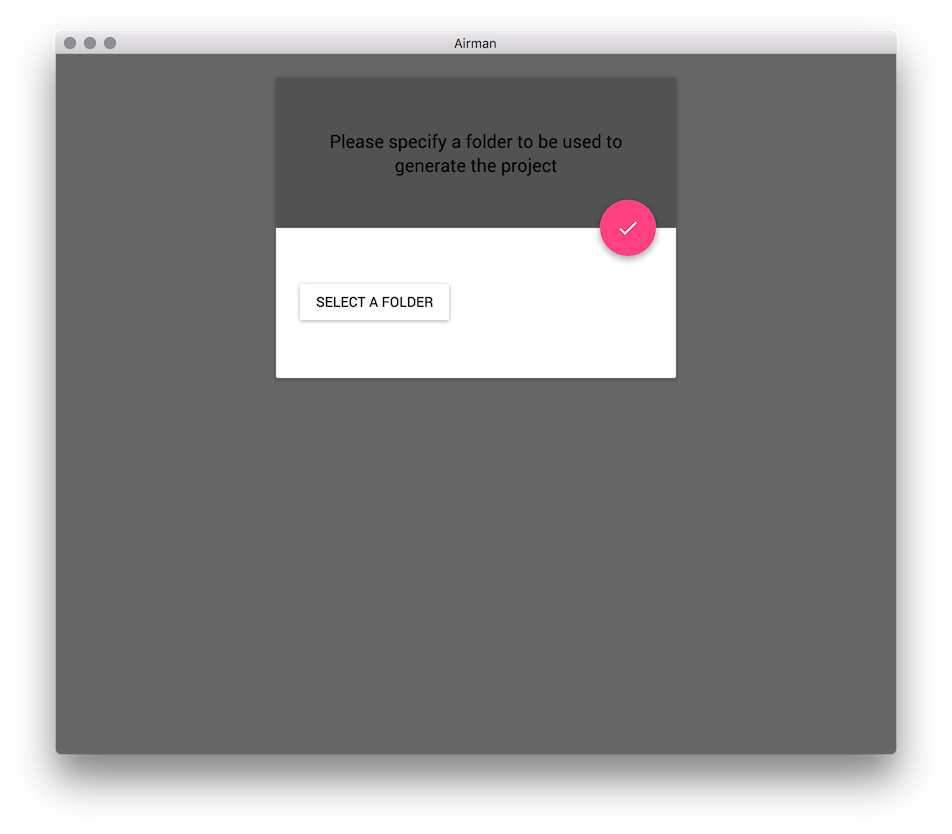
Select the output folder
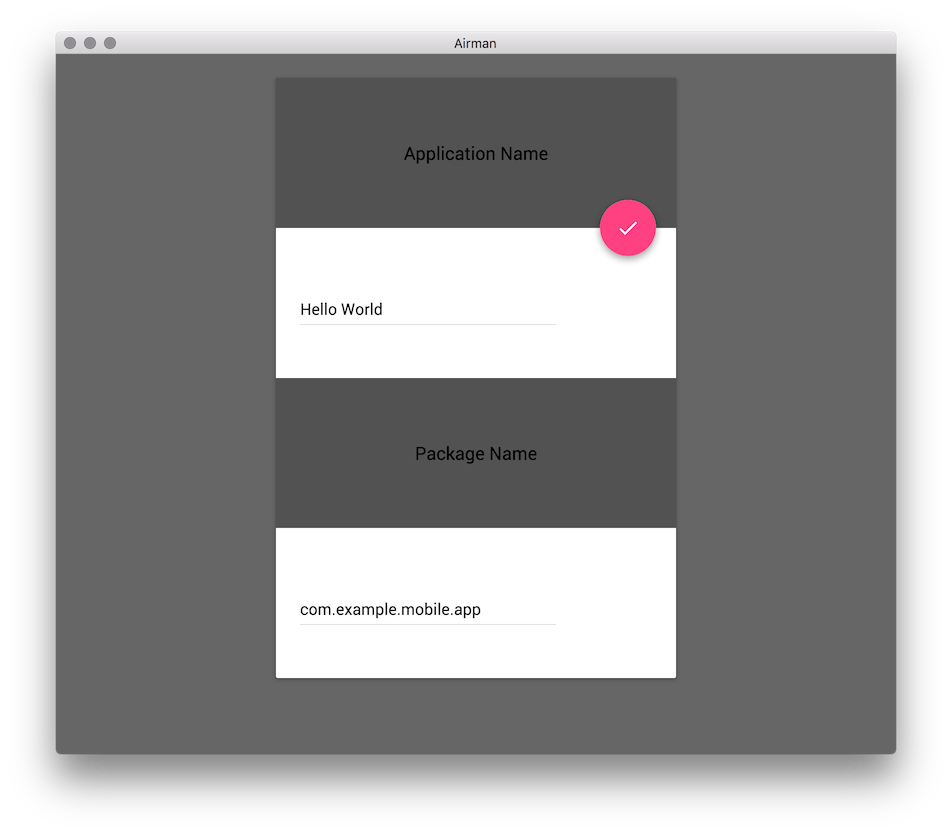
- Configure your app
- Voila, your new app has been generated. Open
settings.gradlein Android Studio and start hacking!
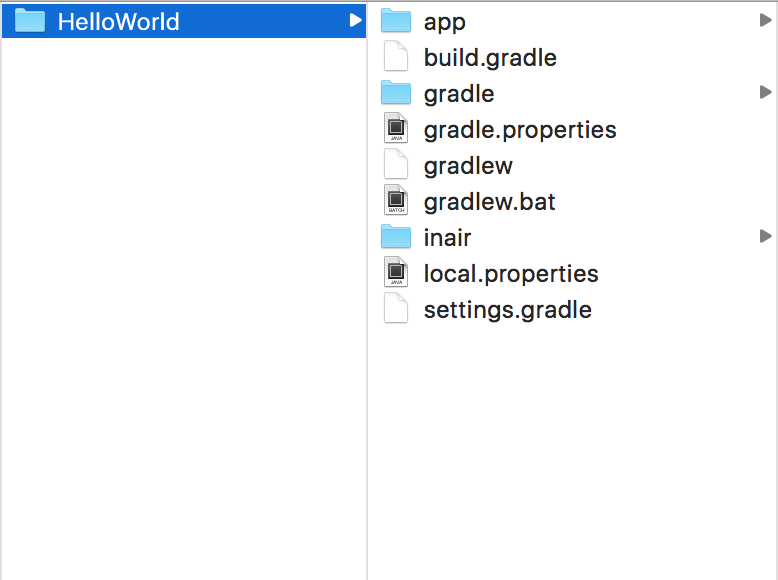
Your InAir project is now a basic "Hello World" app that contains some default files. To run the app, continue to the next tutorial.
Create a Project with Command Line Tools
InAiR App Generator is the GUI for Yeoman. Yeoman helps you to kickstart new projects, prescribing best practices and tools to help you stay productive. Install Yeoman using this one-line command:
npm install -g yo
Then install InAiR generators:
npm install -g generator-inair-blankapp
npm install -g generator-inair-layeredapp
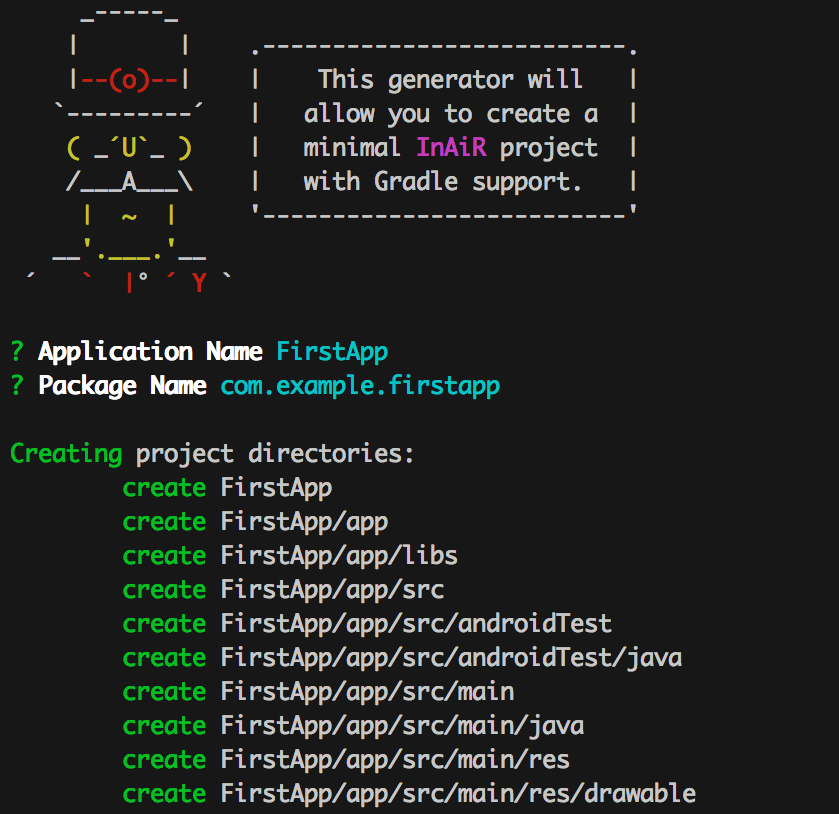
You're now have global yo command line tool and 2 generators: inair-blankapp & inair-layeredapp. To generate a new BlankApp, run:
yo inair-blankapp
Enter Application Name & Package Name and yo will generate a project for you.